

Available in the Full edition.
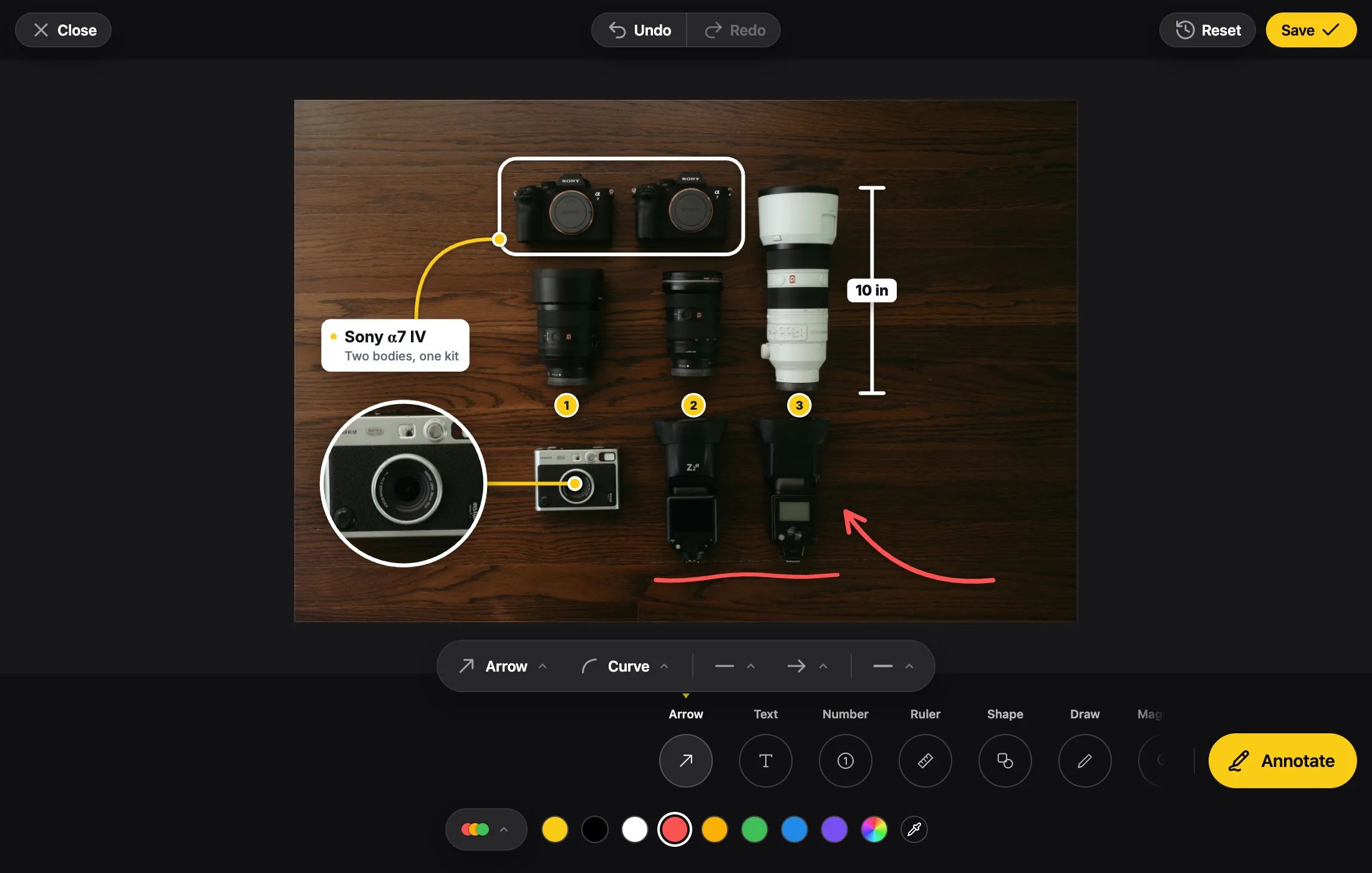
The Seven Tools
A tap on an empty spot makes the tool’s whole piece there; a drag draws it live. A photo holds up to 200 pieces. Annotations are saved with the edit and open editable again.
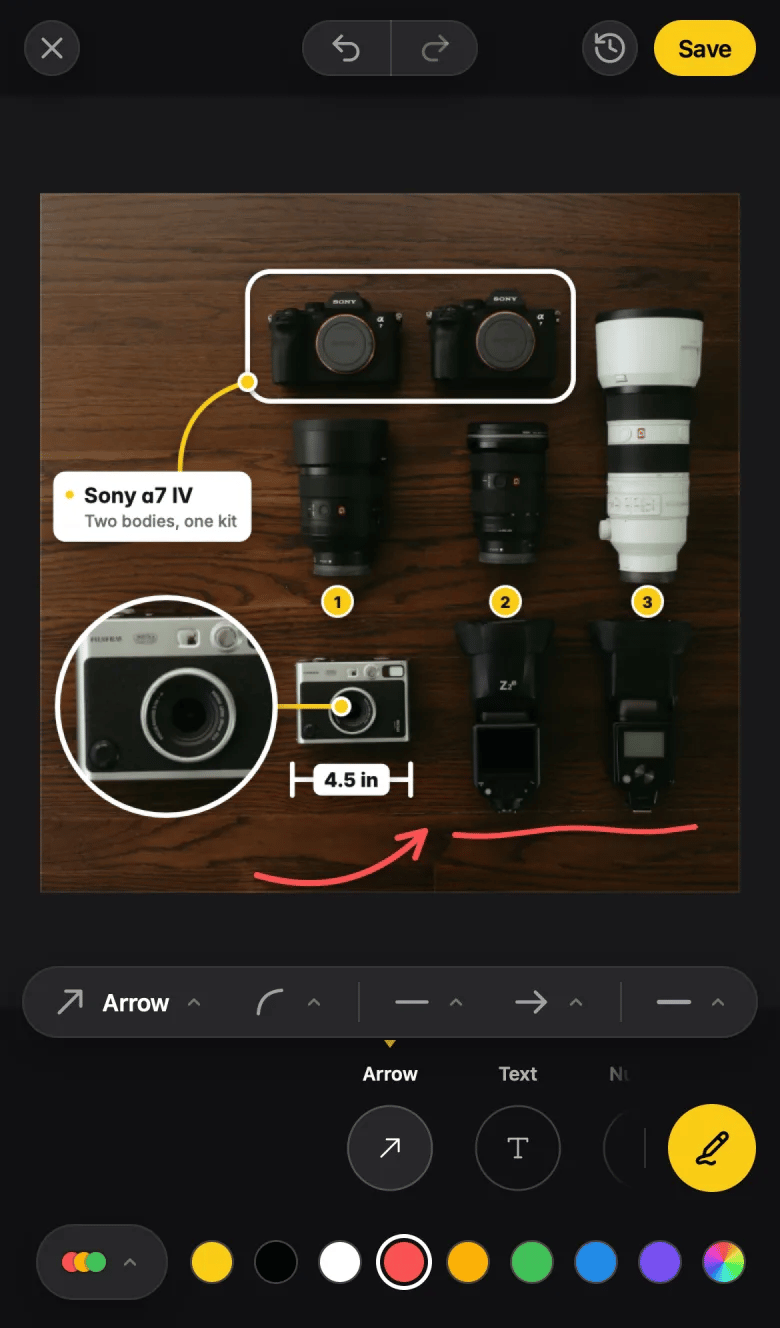
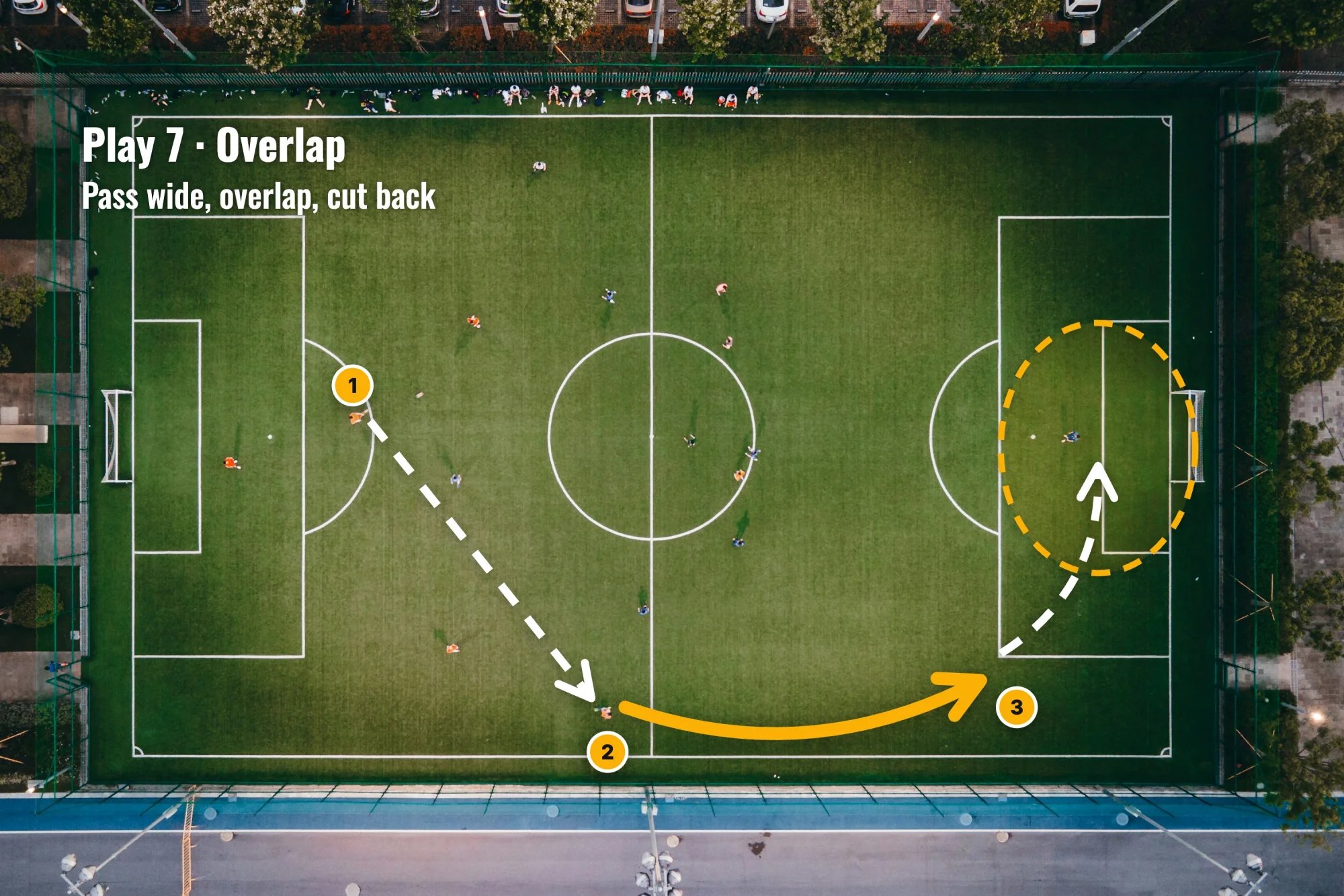
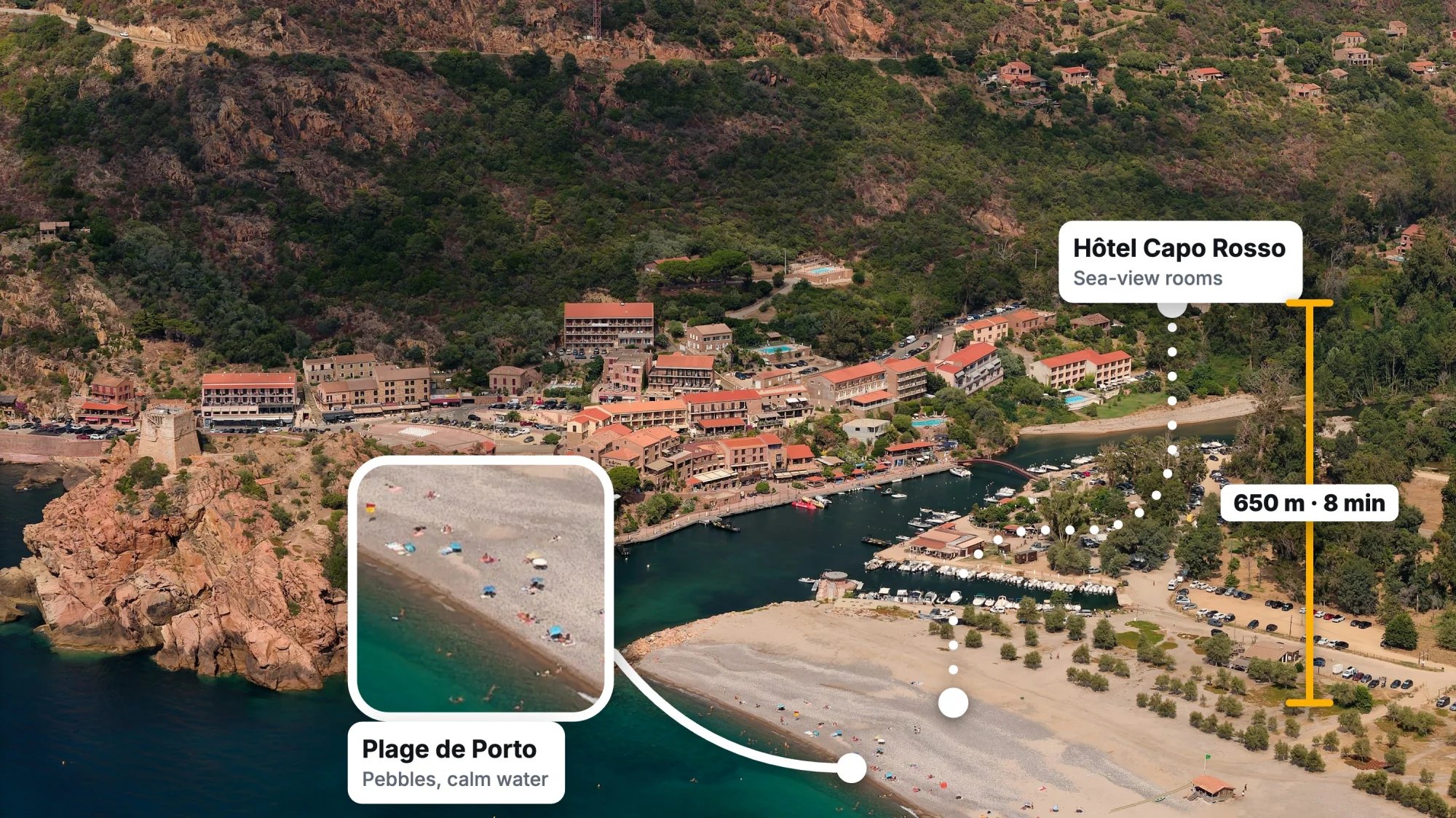
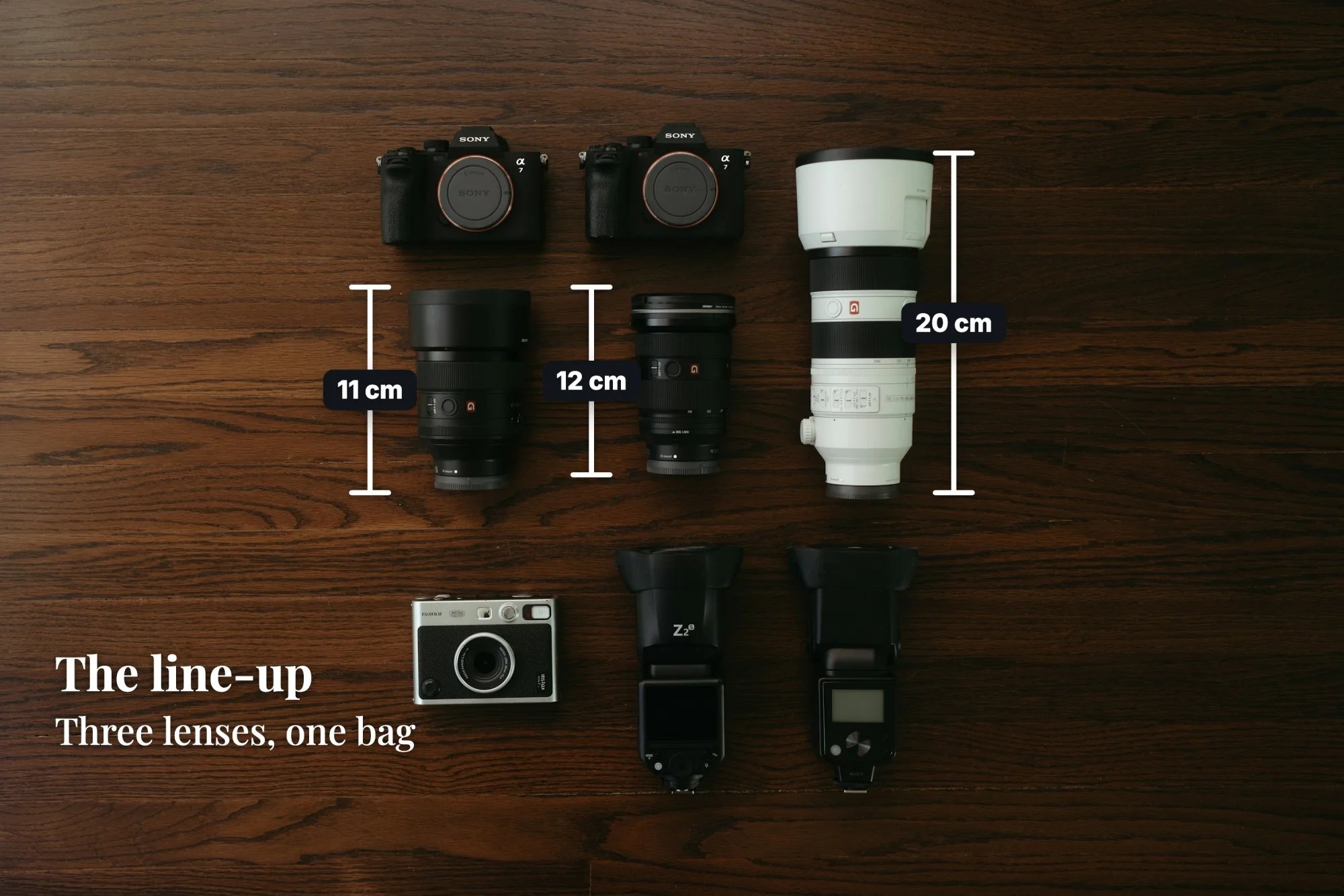
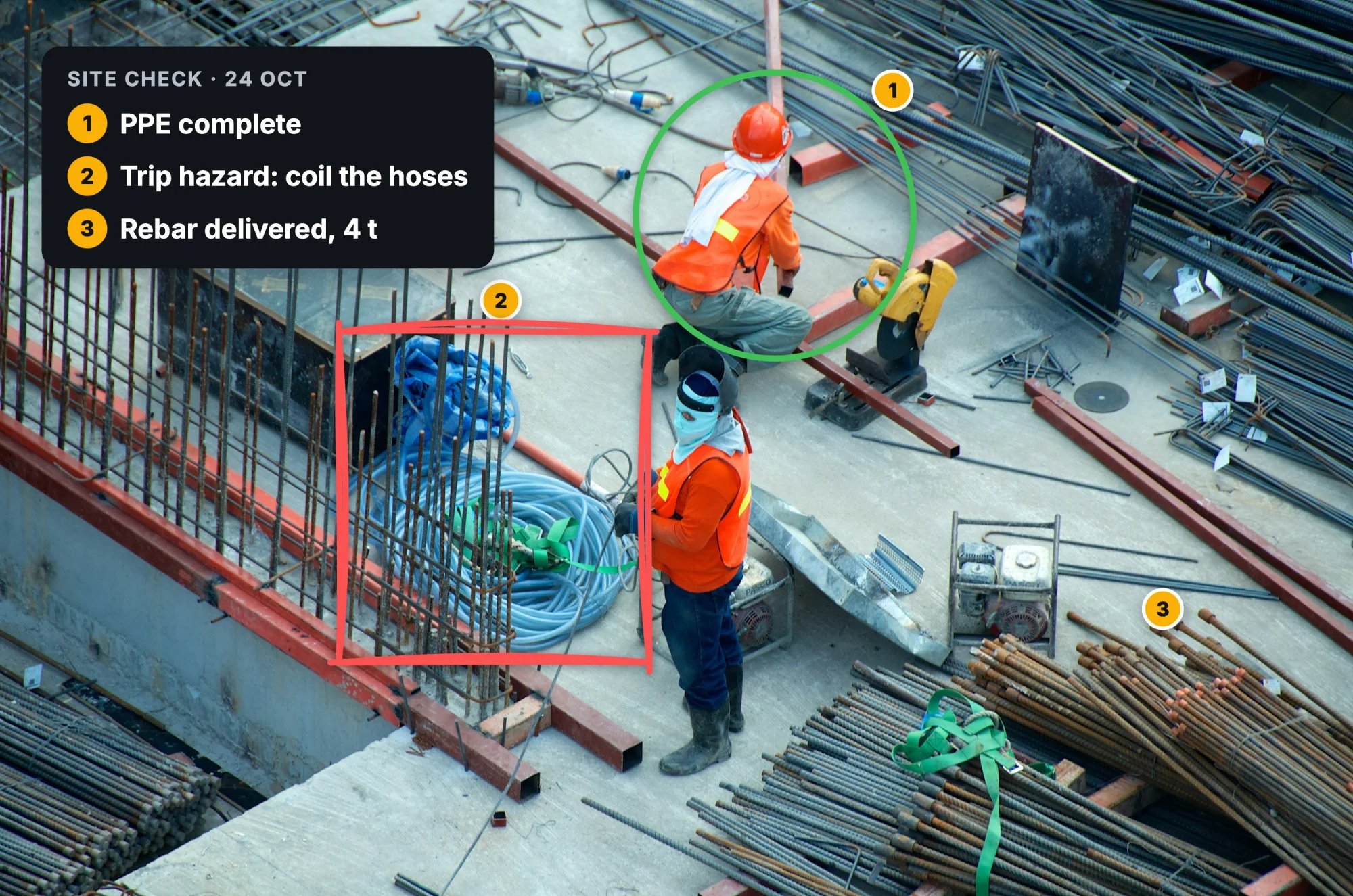
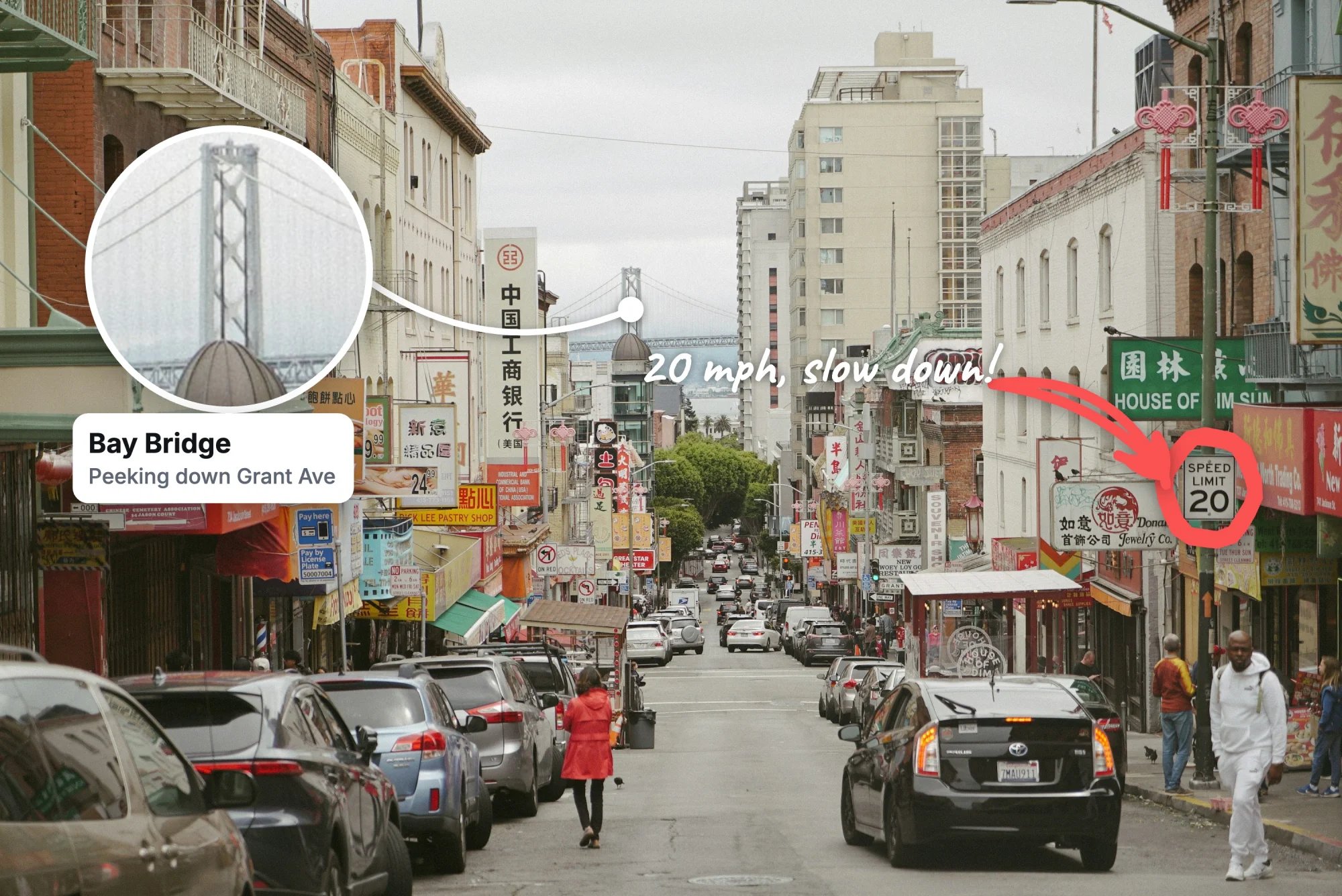
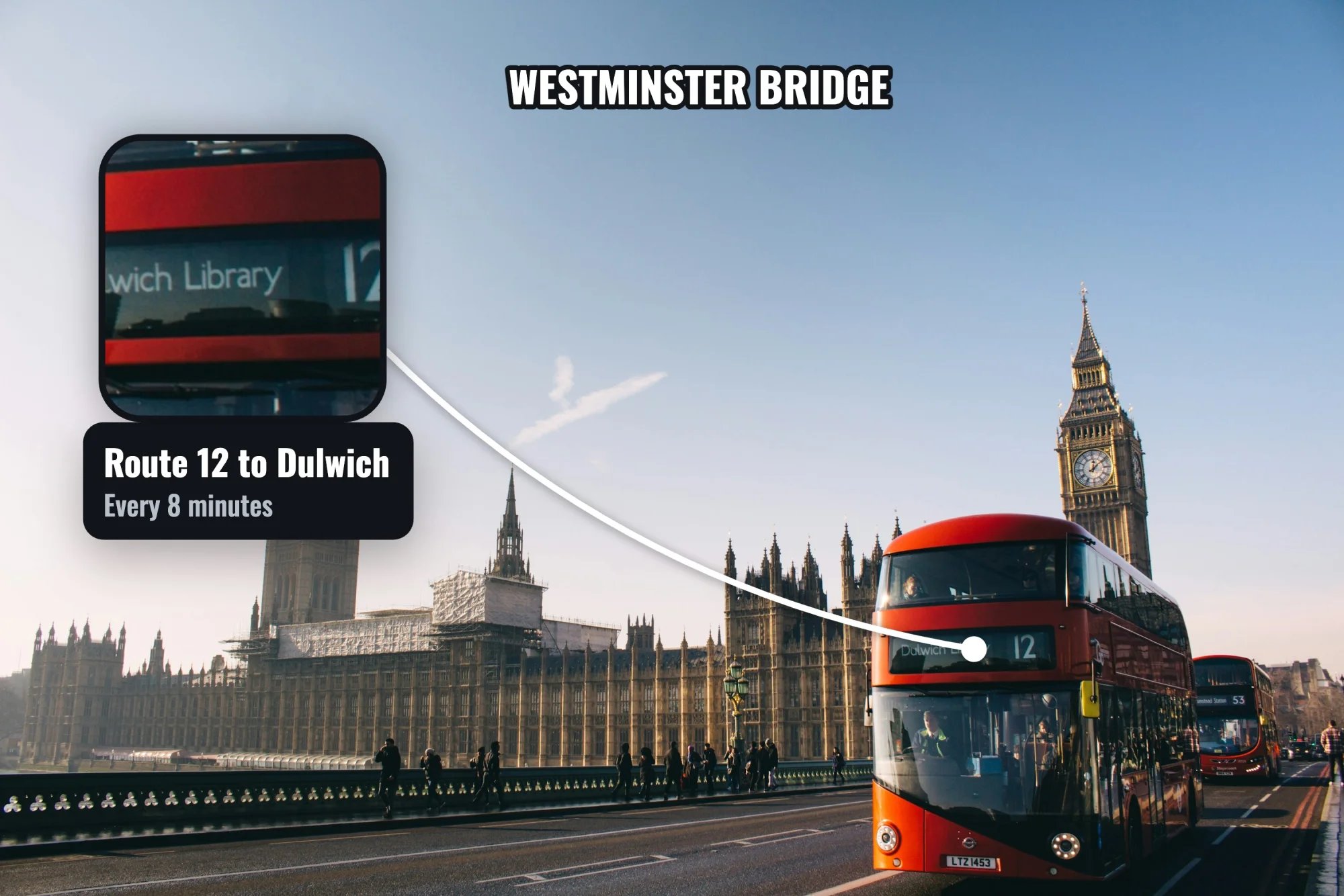
Turn It On or Off
The Annotate button sits at the right end of the tool row, beside the editor’s tools and beside Annotate’s. It shows whenever a row of tools shows, and steps aside with the row while a text box or another section takes its place.enableAnnotate shows or hides it.
Review.tsx
Color and Theme
Review.tsx
These are starting values. The user can change both per piece.
Style Memory
The next piece starts in the last style chosen for its kind, and in the last color and theme.- Pointing lines (arrows, a text’s arrows, a magnifier’s line) share one look: stroke, weight and path.
- Their ends are remembered per role, so a double head on an arrow never puts two heads on a magnifier’s line.
- A shape’s line and a drawing share the look’s stroke and weight, and keep their own path and ends.
How Sizes Scale
Every width and size is a fraction of the photo’s shorter side, never pixels. The screen and the exported file draw the same picture.
The text sizes are shared by the text, the Number’s badge and words, the list and the ruler’s label. Arrowheads, bars and dots grow with the stroke, more slowly than the line itself.
Turning Pieces
- Every piece is born level on the screen, whatever the photo’s turn or flips, then turns and flips with the photo. Each piece saves its own
angle. - Letters and digits never mirror, and a ruler’s label turns a half turn more where it would read upside down. A label beside a short ruler stays on the side of its line the photo carries, so a flip moves it across the line with the photo.
- The two ends of one arrow never land on one point: the glue dot its other end stands on neither shows nor pulls.
- An arrow that leaves a piece and comes back to it, a text’s arrow to its own text or an arrow glued by both ends to one piece, goes round the outside of it whatever its style: a Curve with rounded corners, a Straight one with square ones.
- A text, a Number, the list and a magnifier never mirror, so a flip keeps a line’s end glued to one of them on the same spot of it, and a curve one of them holds by both ends bows the same way over it.
- A selected piece with a body (a shape, a text, a Number, the list, a drawing, a magnifier) has a rotate handle: a small disc on a dashed stem past the bottom of its selection (or its top, where the bottom has no room). Dragging it turns the piece about its middle. Shift turns in 15° steps; without it, the turn snaps level or plumb within 3°. Its pinned text and the line ends glued to it turn with it.
- Arrows, lines and the ruler have no rotate handle, and neither has a box that is small on both sides on the screen. It hides while words are typed, as the other handles do.
- A shape or a drawing whose shorter side is smaller than a handle’s reach on the screen shows only one corner handle, its top-left one on the screen. A press anywhere else on it moves it.
Selecting and Editing
- A tap selects a piece and a drag moves it, selected or not. Esc lets the selection go.
- Under a mouse or a pen, the piece under the pointer lights a thin contour in the accent, a few pixels off its edge. It shows while words are typed too, never on the selected piece and never under a finger.
- Every end of a line is its own handle, even with the line not selected: drag an arrow’s tip or start, a ruler’s end or a magnifier’s point to move that end alone. It glues onto another piece as the selected line’s handle does, and a tap on it selects the line. A short line’s middle still moves it whole.
- The selected list is outlined round its block and round its title, and its side handles set its width; a selected step’s row is outlined, with the same width handles at its height.
- The selected piece has a bar of actions right by it, centered just above it (just below where the stage has no room above), never over one of its handles: Duplicate, Delete, + Text, + Leader, Add Arrow, Bring to Front and Detach, as the piece allows. It steps aside while words are typed, and comes back as the typing ends.
Typing
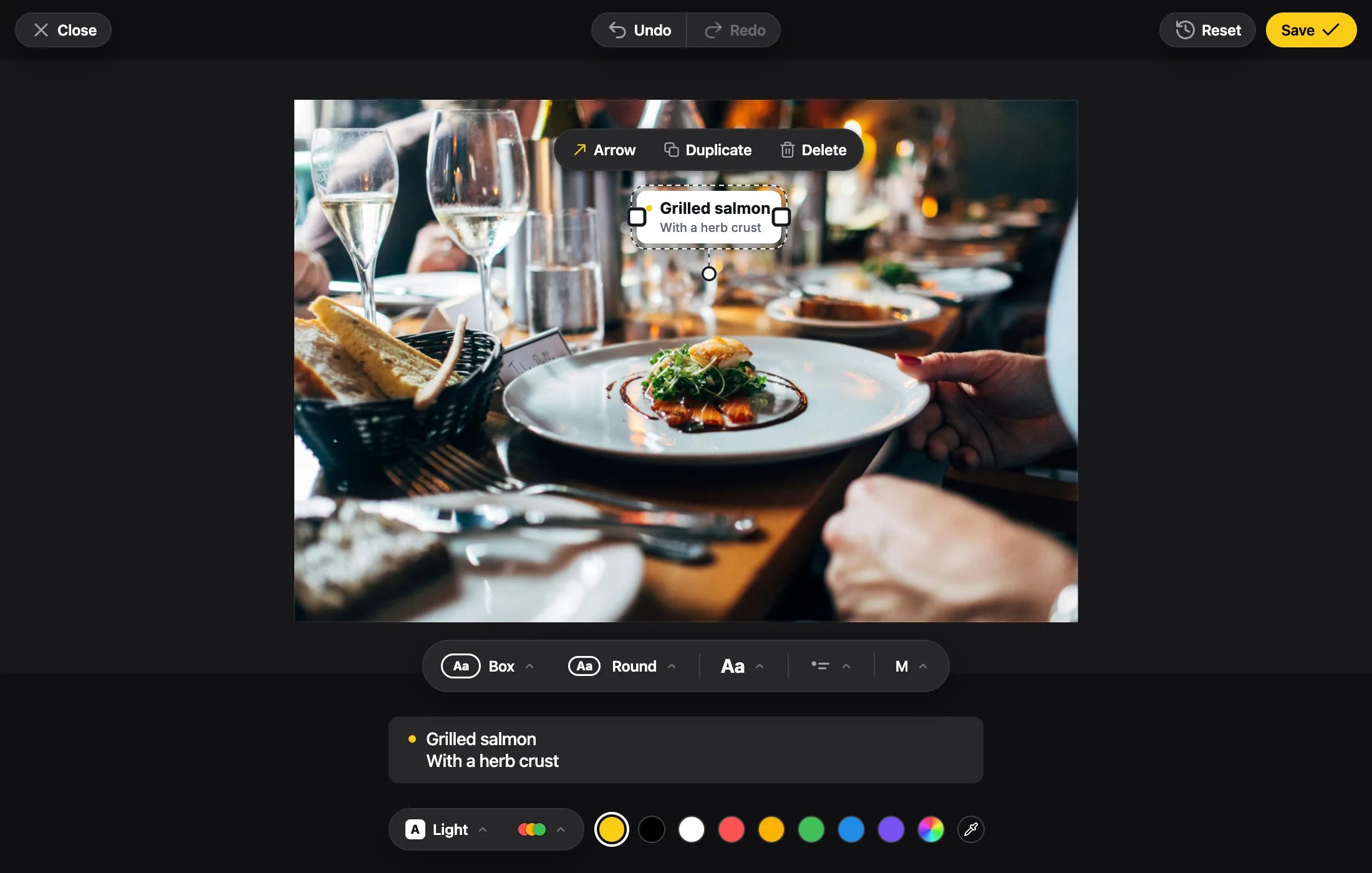
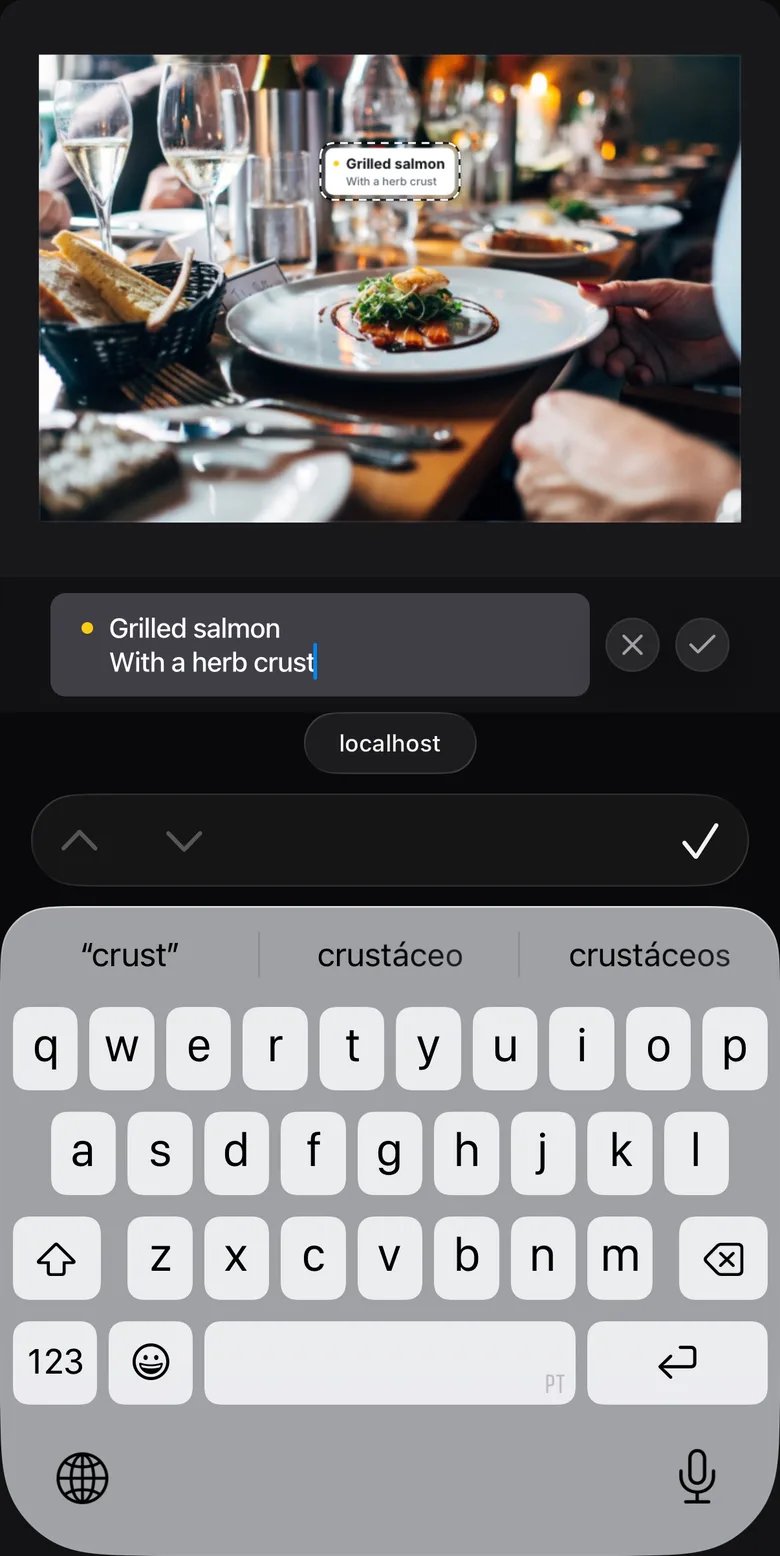
- Everything is typed in a text box in the menu, with a mouse, a pen or a finger and at any angle, while the text on the photo follows every letter in its place, still showing as selected by its dashed line; its handles hide while you type and come back as the typing finishes.
- A selected text shows its words in the box without opening a keyboard. A tap in the box, a second tap or a double click on the text, or Enter on a computer starts typing.
- Making a text, a Number, a ruler or the text of + Text only makes it, on every device: it comes selected, its words in the box, and no keyboard opens until you tap the box or the piece again (or press Enter on a computer).
- A text’s, a Number’s or a list row’s box opens two lines tall, “[Title]” faded on the first and “[Description]” on the second until each has words; a tap anywhere on a line puts the caret in that line, a tap on the second starting the description; ↓ at the end of the title starts it too and ↑ goes back. While the box has no words at all, every tap goes to the title, so a description never starts without one. A ruler’s label and the list’s title take one line.
- The words are tidied as the typing finishes: no spaces at the ends of the title or of a description line, and no empty lines at the start or end of the description (an empty line stays only between two lines with words). While typing, the photo shows exactly what the box holds.
- Cancel and Done slide in round beside the box as it takes the focus, and slide away as it loses it. Done or Cmd/Ctrl+Enter finishes, as does anything that takes the focus from the box (the ✓ over a phone’s keyboard, switching to another app or tab); Enter finishes a ruler’s label and the list’s title. Cancel or Esc in the box gives the words back; the text stays, even one just made (Delete or Undo takes it away).
- While you type, a tap or click anywhere else in the editor, on the text itself too, only finishes the typing: the text stays selected and nothing else happens. Tap the text again to type it again.
- While words are typed, the editor shows only the photo and the text box with Cancel and Done, the same on a phone, a tablet and a computer: the top bar, the capsule of options, the color row and the action bar fade and come back as soon as the typing finishes.
- While the box has the focus, on every device, it sits at the foot of the editor with the same small margin above and below it, and the photo whole in the middle of the room above, as much room over it as under it, both gliding there and back as the typing starts and finishes. On a phone or a tablet the on-screen keyboard only makes the room smaller: the box sits right over the keyboard. A room that changes size (the keyboard coming or going, a resized window, a turned phone) is taken at once, never sliding; on a phone, finishing with the keyboard up is one move: the photo goes from the room over the keyboard straight to its place, never smaller on the way, on a slow phone too. Annotate’s zoom stays: zoomed in, the photo moves just enough to keep the piece you type in sight, and once the typing finishes it is zoomed and placed as it was.
- Nine fonts, each name written in its own letter in the Font menu, three by three: Inter, Montserrat, Oswald, Anton, Playfair Display, Courier Prime, Caveat, Pacifico and Permanent Marker. Each is balanced to look the same size, so a size looks alike in any of them.
- Changing a text’s look (Plain, Box or Caption) or its box’s padding keeps its words where they stand on the photo.
In the Saved File
- Annotations sit under the frame and the watermark and signature.
- Crop, rotation and flip move nothing: pieces stay where they are on the photo, and turn and flip with it.
- A magnifier shows only the photo inside the crop: with its point near the crop’s edge, what it shows slides inward just enough to stay inside, so the lens is always full of photo. The lens, its line and its point stay where they are. A lens wider than a tiny crop shows a neutral gray past the crop’s edge, never what the crop cut off.
- Fonts load only when letters are needed. If they’re blocked, texts show and save in a system font.
Annotation Fields
What a saved annotation holds.
Saved State
Store and reopen an edit.