Available in the Full edition.
Let users hide parts of the photo before they save it.

How It Works

Drag on the photo to draw an area to hide. Tap an area to select it, move it, resize it, turn it or delete it.
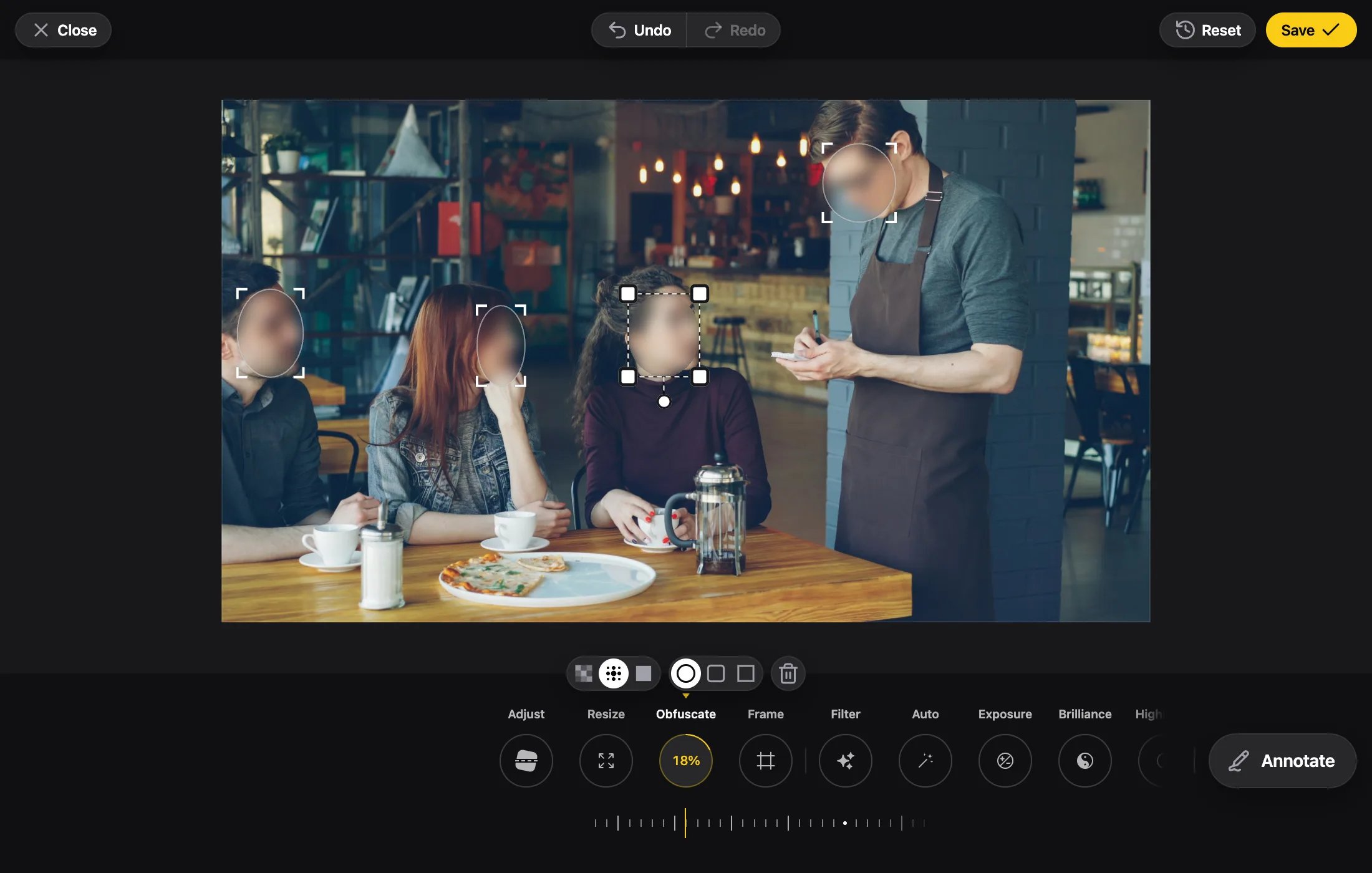
A waiter taking an order from three friends at a café table, each of the four faces under a round blurred area, the middle one selected with its four corner handles and its rotate handle; the menu shows Pixelate, Blur and Solid, the three shapes, Delete, and the blur strength at 18%
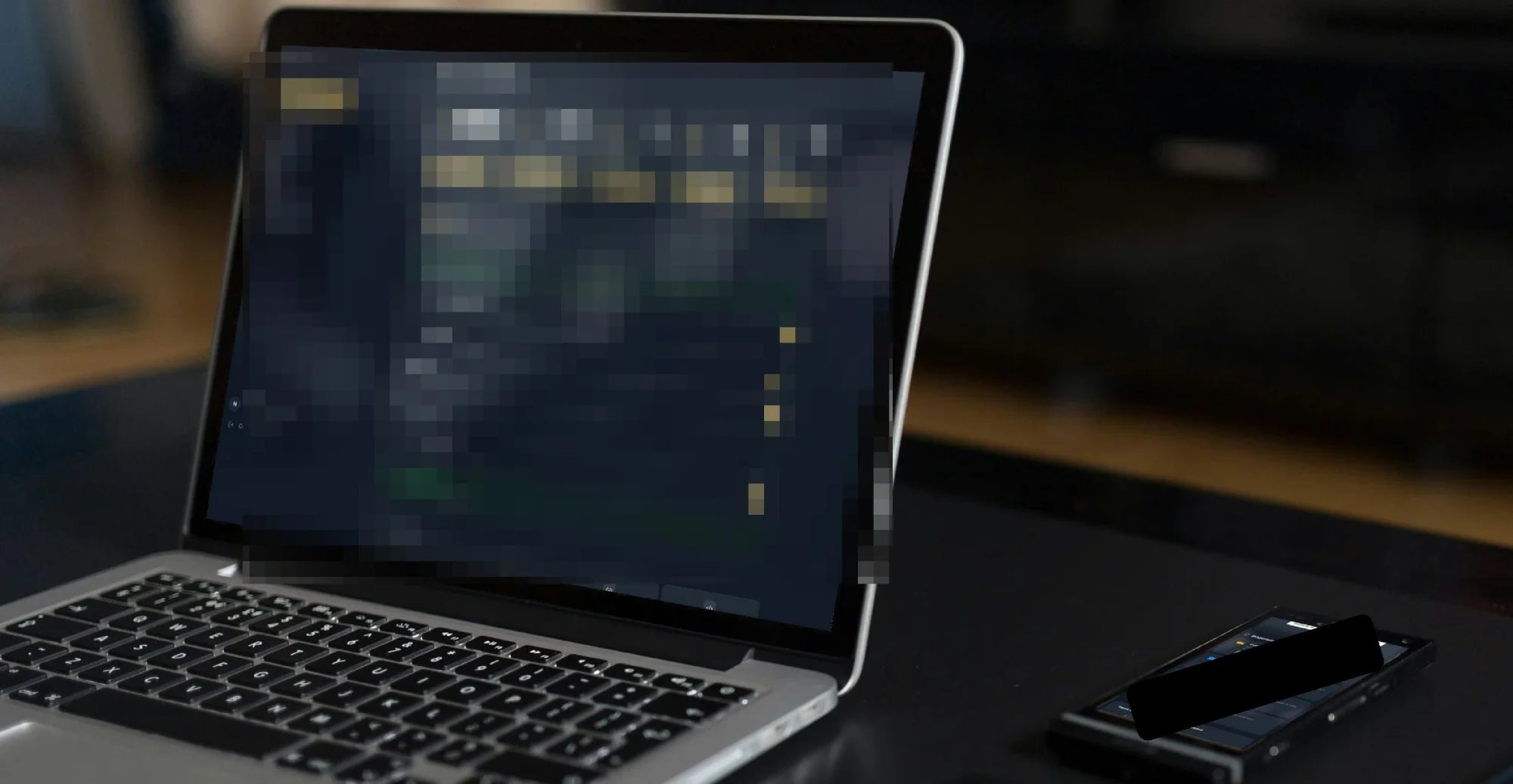
A laptop and a phone on a dark desk: the laptop's screen pixelated under a Square area, and the phone's screen under a Solid black Rounded area turned along the phone
  • Each area keeps its own shape, style, strength and color.
  • Shift keeps an area square (or round) while drawing, and keeps its proportion while resizing.
  • On a straightened, turned or mirrored photo, an area is drawn level on the screen. From then on it turns with the photo.
  • A selected area has a rotate handle, as an Annotate piece does: dragging it turns the area about its middle, Shift in 15° steps. An area small on both sides on the screen has none.
  • An area smaller than a handle’s reach on the screen shows only its top-left corner handle. A press anywhere else on it moves it.
  • An area may reach past the photo’s edge. Only the part over the photo is hidden.
  • Areas snap to each other’s edges and centers and to the photo’s center lines and margins. Cmd/Ctrl drops the snap.
  • The preview matches the saved file pixel for pixel.
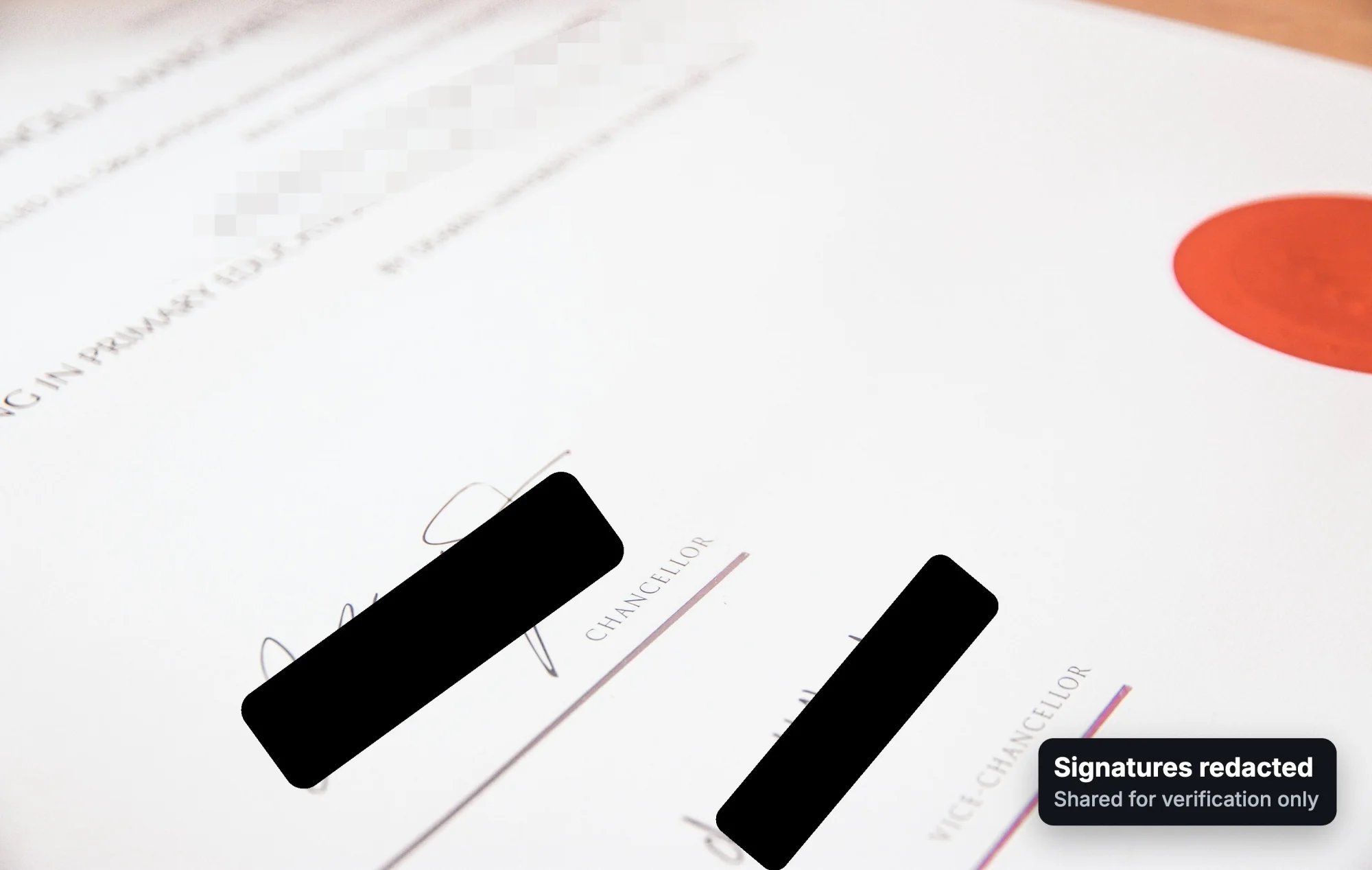
A university certificate photographed at a slant: both signatures under Solid black Rounded areas turned to the slant of the page, a line of text pixelated under a turned Square area, and the dark box Signatures redacted, Shared for verification only
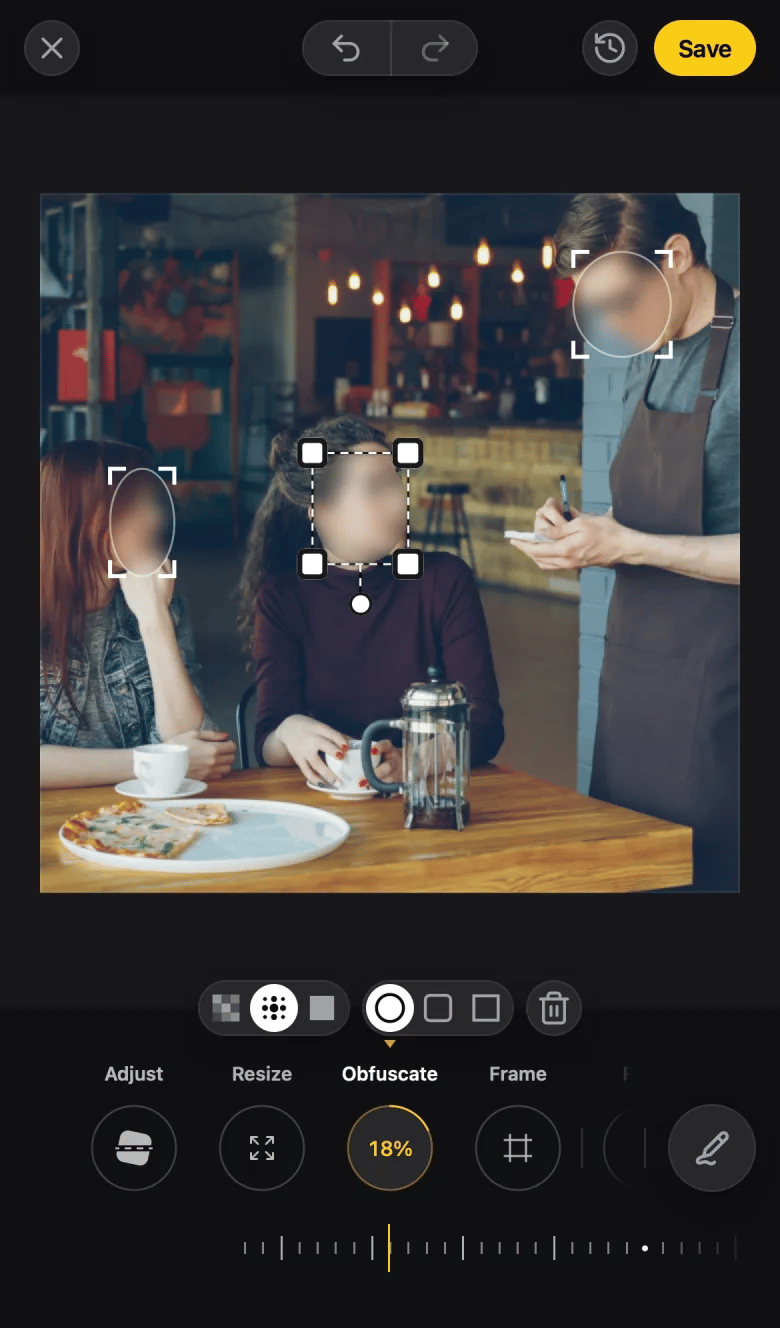
The same café on an iPhone, the photo cropped square: three faces blurred, the middle one selected with all its handles
Use Solid to hide text. Blur and pixelation can be reversed.
A solid area is painted under everything that reads the photo (blur, the local adjustments, the marks’ automatic color), so nothing shows through it.
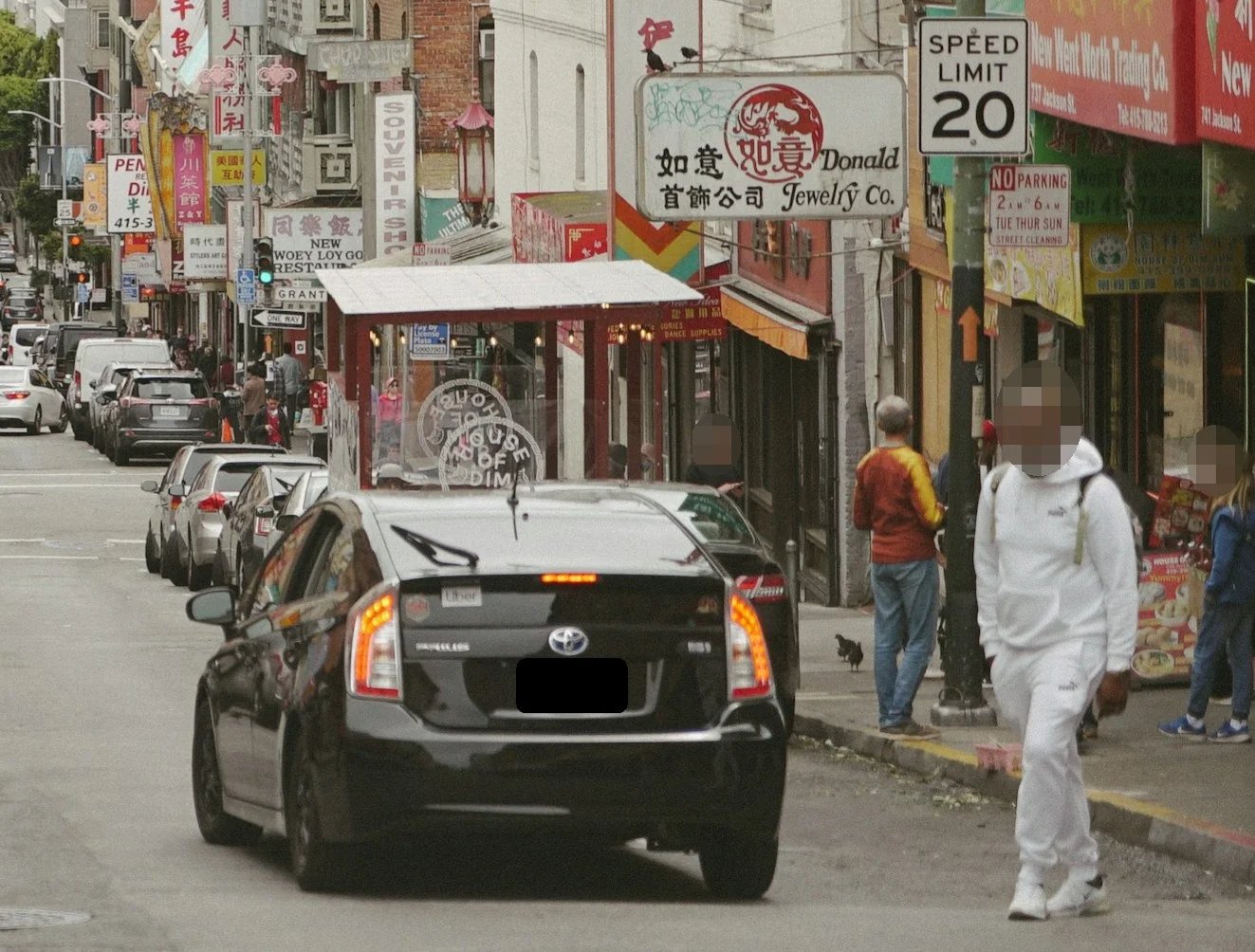
A Chinatown street cropped close on a black car and the pavement: three faces pixelated under Round areas, and the car's number plate under a Solid black Rounded area

Turn It On or Off

Editor.tsx
Turned off, the areas already in the state stay, drawn and saved.

Limits

  • Up to 64 areas per photo. The user sees a notice at the limit.
  • A state with more than 64 areas is refused with INVALID_STATE, never opened half-cleared.
  • A state saved by Pintura opens with its redactions as areas.

Errors

Every error code.

States Saved by Pintura

What a legacy state keeps.