

What the User Can Do
The Adjust tool holds the crop. It’s in every edition.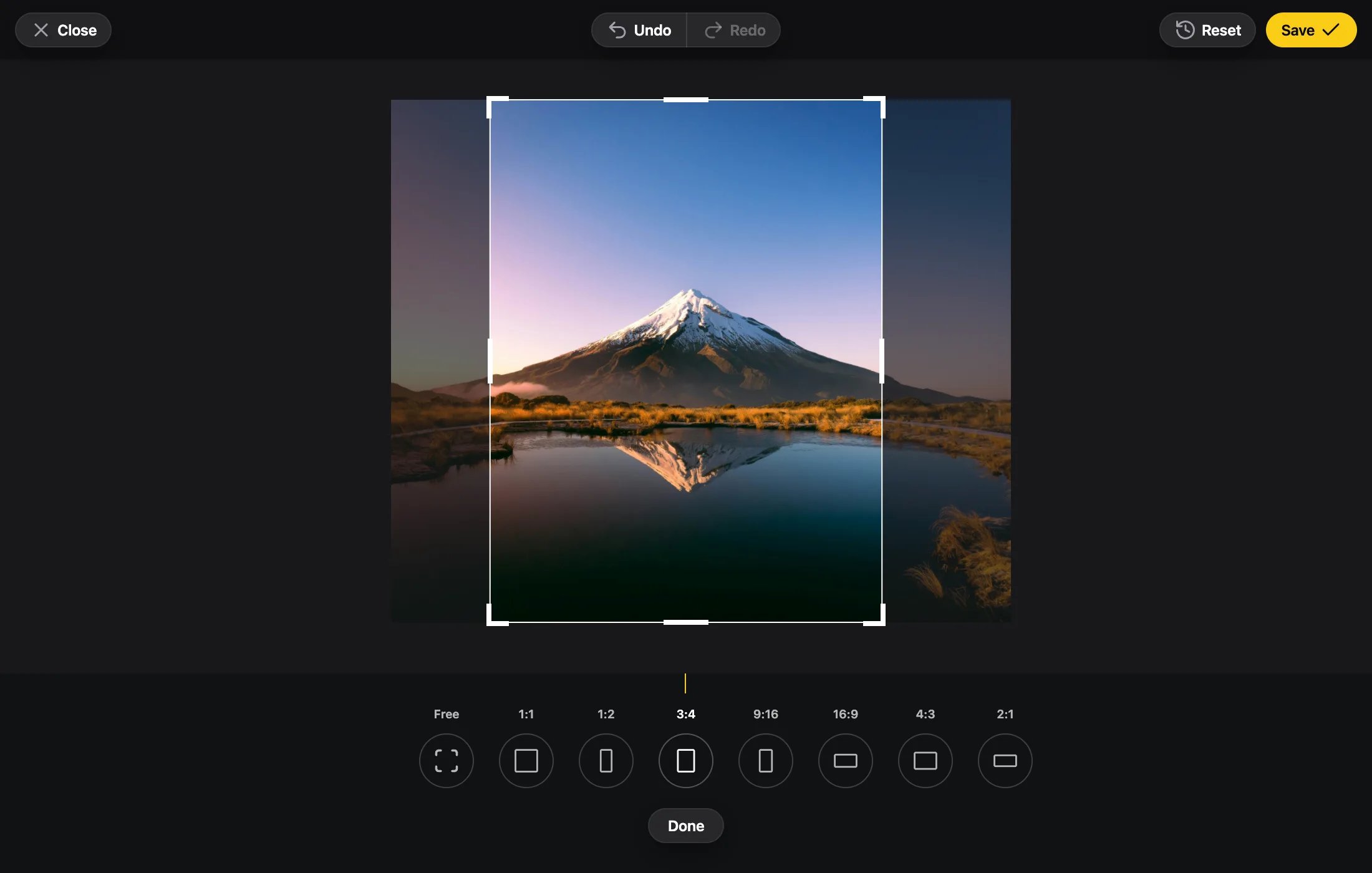
A ratio takes the largest window of that shape, placed where Focus says. A handle follows the finger as far as the toolbar, the editor’s sides and the crop pill. Let go, the window rests there for a moment, then springs back to fill the photo’s area, centered, as on the iPhone.
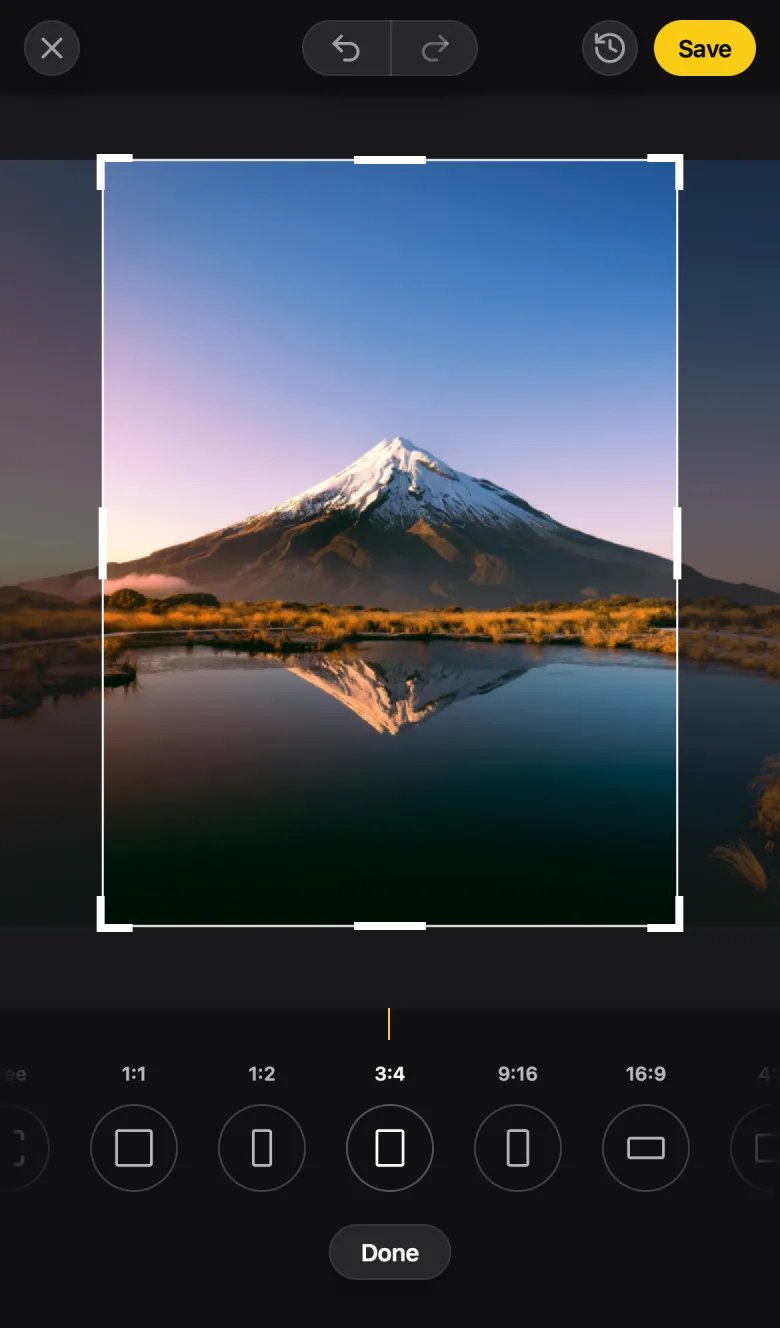
Open at a Ratio
aspectRatio is width / height. The user can still pick another ratio.
Banner.tsx
Lock a Ratio
AddaspectRatioLocked to fix the ratio. The ratio selector is hidden.
Avatar.tsx
Ratios
- Changing
aspectRatiolive applies as one step undo can take back. - Changing the lock live starts a new undo history at the locked ratio, so undo can’t free it.
- Two ratios within half a percent of each other count as one.
Output Size and Type
Upload.tsx
- Either cap alone limits its own side. Both fit the output inside both. The ratio is kept, and the output is never enlarged by a cap.
- The output never goes past 16.7 MP.
- A source that isn’t JPEG, PNG or WebP (HEIC, AVIF, GIF…) saves as PNG unless you set
outputType. - The file keeps the source’s name with the output’s extension, or
image.<ext>when it has none.
Large Photos
How photos over 16.7 MP are handled.
Props
Every prop, with types and defaults.